How do you compose a background for dialogue?
- 01
Place the camera
Choose a viewpoint and place one landmark in the empty scene.
- 02
Set the hour
Select daylight, sunset or nighttime lighting before generating.
- 03
Stage the scene
Test your sprites and dialogue box against the widescreen background.
How can a scene leave room for dialogue choices?
Picture the player’s screen with a character portrait and the dialogue box already in place. A window behind the character can provide a pleasing rim of light, but a busy poster behind the text can make a quiet scene difficult to read.
Try the same camera vocabulary in each brief. Name the wall facing the player, the height of the horizon and which side of the screen needs quiet space. Save those details with the result so the next lighting pass starts with a concrete reference.
- After-class room
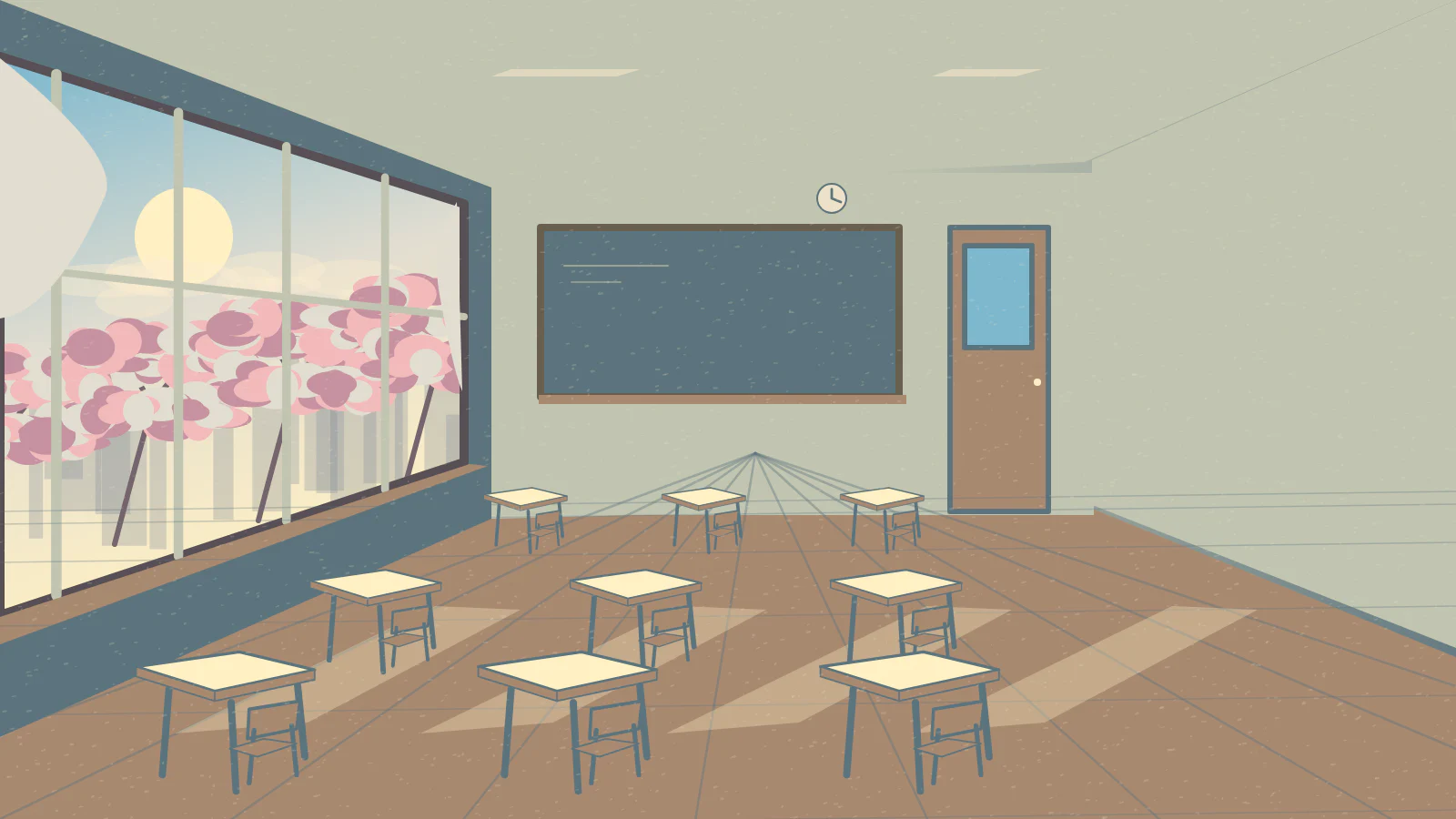
- An empty classroom seen from the back right corner. A window fills the left wall, a chalkboard faces the viewer and two rows of desks form a clear aisle. Leave the bottom of the frame subdued for dialogue.
- Station café
- A quiet station café with a tall ticket window at the left and an empty corner table near the right edge. Keep the camera at standing eye level. Place the brightest sign high, away from the lower dialogue panel.
What can move when the time of day changes?
The lighting preset guides another generated image. A second pass may redraw chairs, doors or the window frame. Compare landmark positions before cutting from day to night during the same conversation.
| Scene detail | Continuity check |
|---|---|
| Horizon and floor | Verify that the standing character’s feet still meet the same plane in both variants. |
| Light source | Match the direction of reflections and cast light with the window or lamp you described. |
| Dialogue area | Test long lines of text against the brightest and darkest patch beneath the box. |
How do you prepare the background for your game?
For a 1920 × 1080 Ren’Py project, check the exported dimensions and set the crop or scaling behavior to fit your scene. Save alternate takes under distinct scene names so a lighting revision does not overwrite the approved layout.