How Do You Enhance Photo Quality Online?
Enhance photo quality online in three steps, with nothing to install:
- 01
Upload the original
Drop, paste or pick a JPG, PNG or WEBP. Camera originals keep the most detail.
- 02
Choose a mode
Auto Enhance for most photos, Face for people, Low Light for dark shots, HD for small images.
- 03
Compare and download
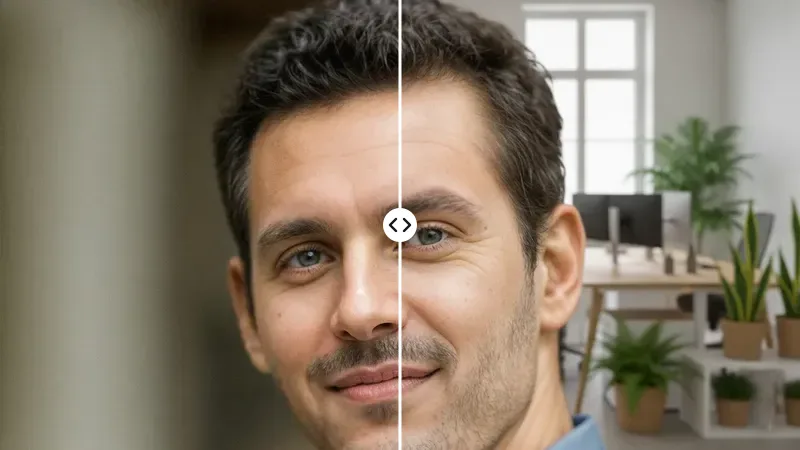
Drag the slider over eyes, text and edges, then save the HD result.
Your first enhancement is free; after that, Auto Enhance and HD cost 1 credit, Face 2 credits up to 1 megapixel and up to 8 for larger photos, and Low Light 6.
Who Uses a Picture Enhancer?
From profile pictures to product shots, these are the photos people bring to the AI photo enhancer most:
- Profile picturesA clearer face for LinkedIn, dating apps and team pages, from the photo you already have.
- Product listingsPhone shots of products, cleaned of grain so listings look professional.
- Chat and social photosEvent and travel pictures that came back blocky from a group chat.
- Low-light momentsDinners, concerts and evening portraits shot at high ISO.
What Does an AI Photo Enhancer Fix?
An AI photo enhancer has learned what real texture looks like, so it rebuilds detail instead of just raising edge contrast like a sharpening slider. Pick your problem to see the best mode:



Grainy low-light photos
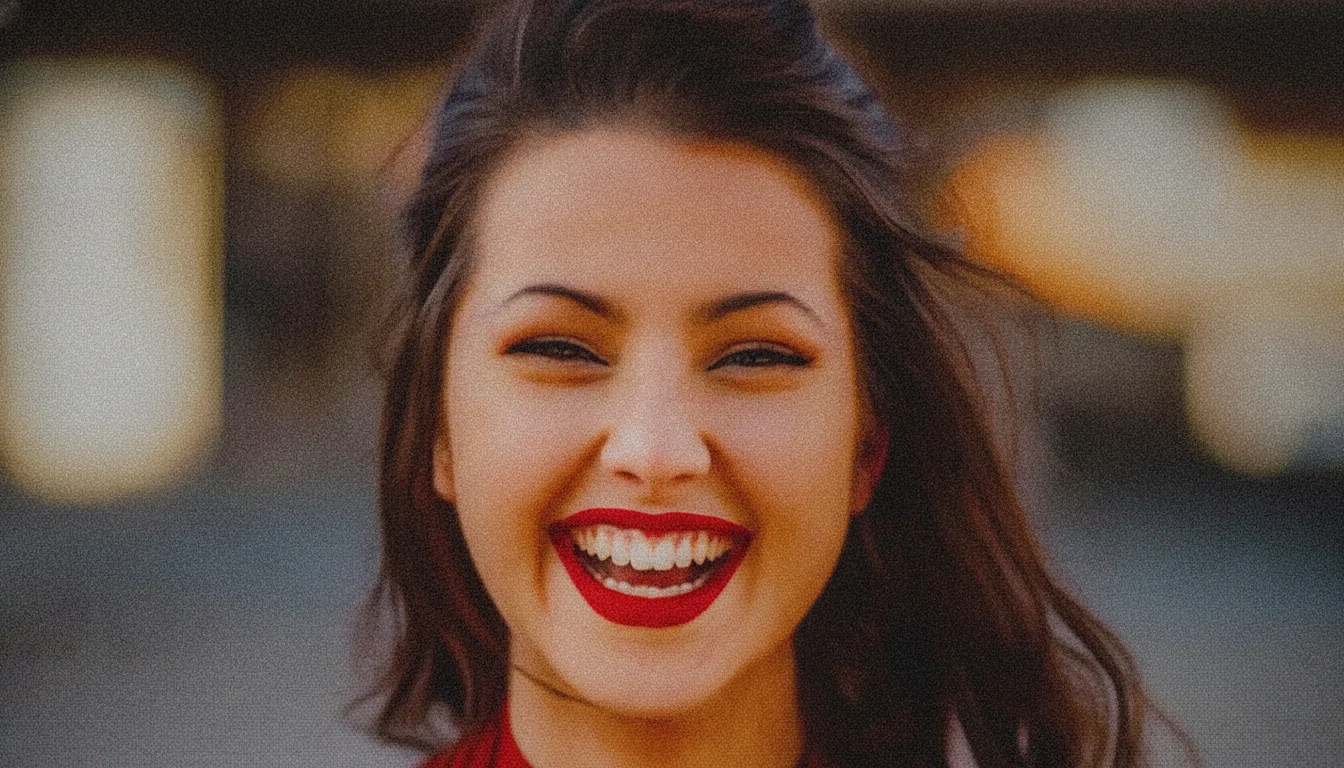
Best mode: Low LightColoured speckles in dark areas, especially in skies, walls and hair.
Separates real texture from sensor noise and smooths only the noise.
Compression artifacts
Best mode: Auto EnhanceBlocky squares and halos around edges after a photo was sent through a chat app.
Rebuilds smooth gradients and clean edges where the blocks were.
Low-resolution pictures
Best mode: HDSmall images that turn soft and jagged as soon as you view them full screen.
Adds fine detail so the picture holds up on larger screens.
Soft or smeared faces
Best mode: FaceEyes without catchlights, waxy skin, faces that dissolve in group shots.
Restores eyes, lashes and skin texture on every detected face.
Slightly soft focus
Best mode: Auto EnhanceThe subject is almost sharp, but fine lines and hair look mushy.
Tightens edges and recovers fine lines without halos.
Over-processed phone night shots
Best mode: Low LightA watercolour look where the phone smeared noise and detail together.
Brings back texture in faces, foliage and fabric that the phone flattened.
Turn low-quality pictures into HD
Rebuilds hair, fabric and leaves so small images hold up full screen.
Reduce noise in low-light photos
Removes grain between edges while skin stays skin.
Remove JPEG compression artifacts
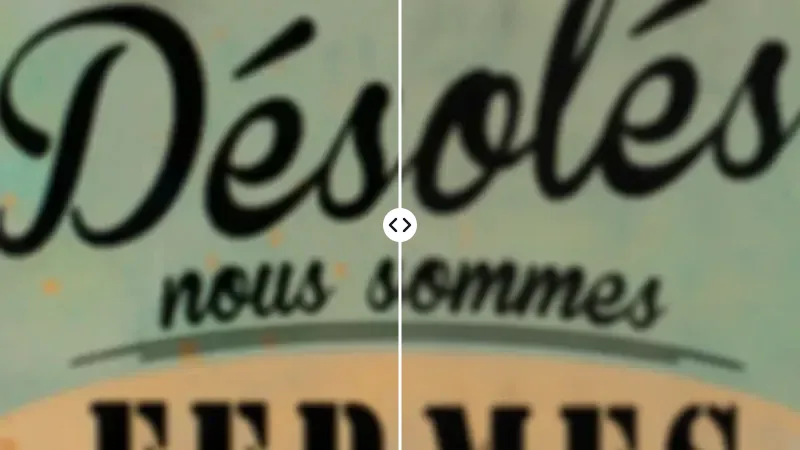
Smooths the 8×8 blocks chat apps leave in skies and gradients.
Enhance faces naturally
Restores eyes, lashes and skin on every face, even in group shots.
For strong motion blur or a missed focus, a dedicated tool works better: try unblur image.
How Much Detail Does Enhancement Really Add?
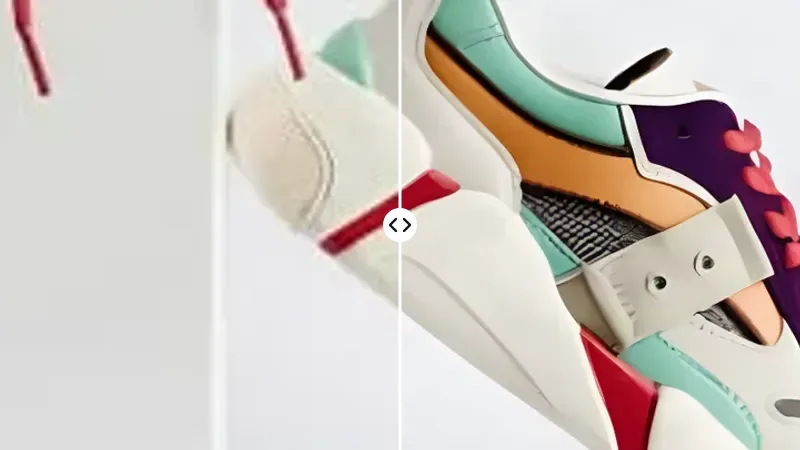
Move the focus box to compare the same spot at 400%. Eyelashes, text edges and fabric weave show real recovery, not just sharpening.
AI cannot recover detail that was never captured; for small print or licence plates, treat the result as a best guess.
How Strong Should Face Restoration Be?
Stronger restoration means a sharper face and a higher chance it looks less like the real person:
Balanced. Sharper eyes and lashes, cleaner lips and hairline, skin texture rebuilt where it was lost.
- Best for
- Most portraits, group photos at normal distance and profile pictures.
- Watch out for
- Skin can look slightly smoother than in real life.
Photo Enhancer vs Image Upscaler: Which Do You Need?
An enhancer fixes quality at the size you have; an upscaler adds pixels for print or large displays.
| Photo enhancer | Image upscaler | |
|---|---|---|
| Main job | Fix noise, artifacts, soft faces | Increase pixel dimensions |
| What changes | Clarity, noise, faces | Pixel dimensions |
| Best for | Phone photos, chat images, portraits | Prints, posters, product zoom |
| Typical problem | Looks bad at any size | Looks fine small, pixelated big |
If it only needs to be bigger, use the AI image upscaler.
Watch the Photo Enhancer in Action
Is There a Free Photo Enhancer Without Watermarks?
Yes. Your first enhancement needs no account and never carries a watermark, and new accounts get free credits after verifying their email. Paid plans add the premium Nano Banana 2 model for group photos and heavier damage.