AI Photo Tools
Every AI tool for editing photos, grouped by what you want to do — pick the job, not the software.
ImageMuse offers online AI photo tools to enhance and upscale images, fix blur, remove backgrounds and watermarks, change text, and turn pictures into prompts. Use them in your browser with one free guest edit shared across the site. Image to Prompt has a separate daily free allowance.
What is wrong with your photo?
Pick the problem and go straight to the right tool, with the matching mode already selected.
- It is blurry because the camera movedUnblur Image
- The subject is out of focusUnblur Image
- It is grainy or looks low qualityAI Photo Enhancer
- It is too dark and noisyAI Photo Enhancer
- It is too small to print or zoomAI Image Upscaler
- I need it on a transparent backgroundBackground Remover
- I want a different backgroundBackground Remover
- There is a date stamp or logo on itWatermark Remover
- The text on it is wrongAdd Text to Image
- I want to recreate its style with AIImage to Prompt
Enhance
Which AI tools improve photo quality?
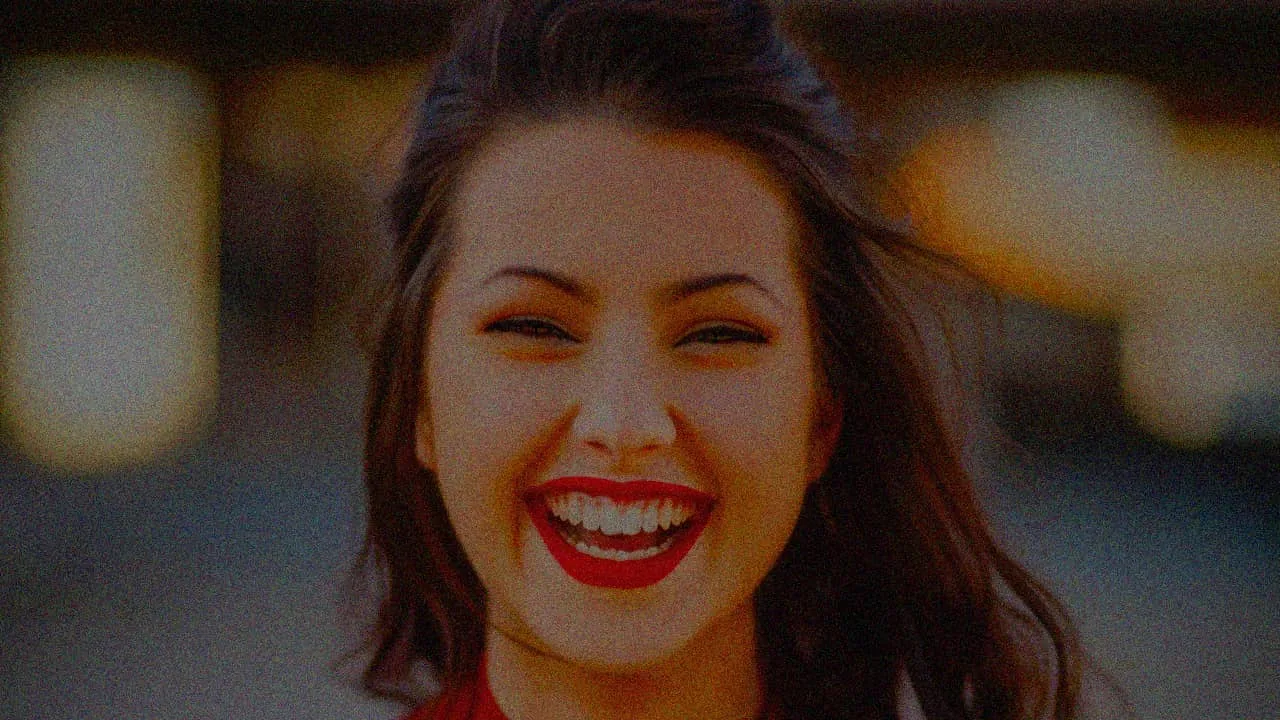
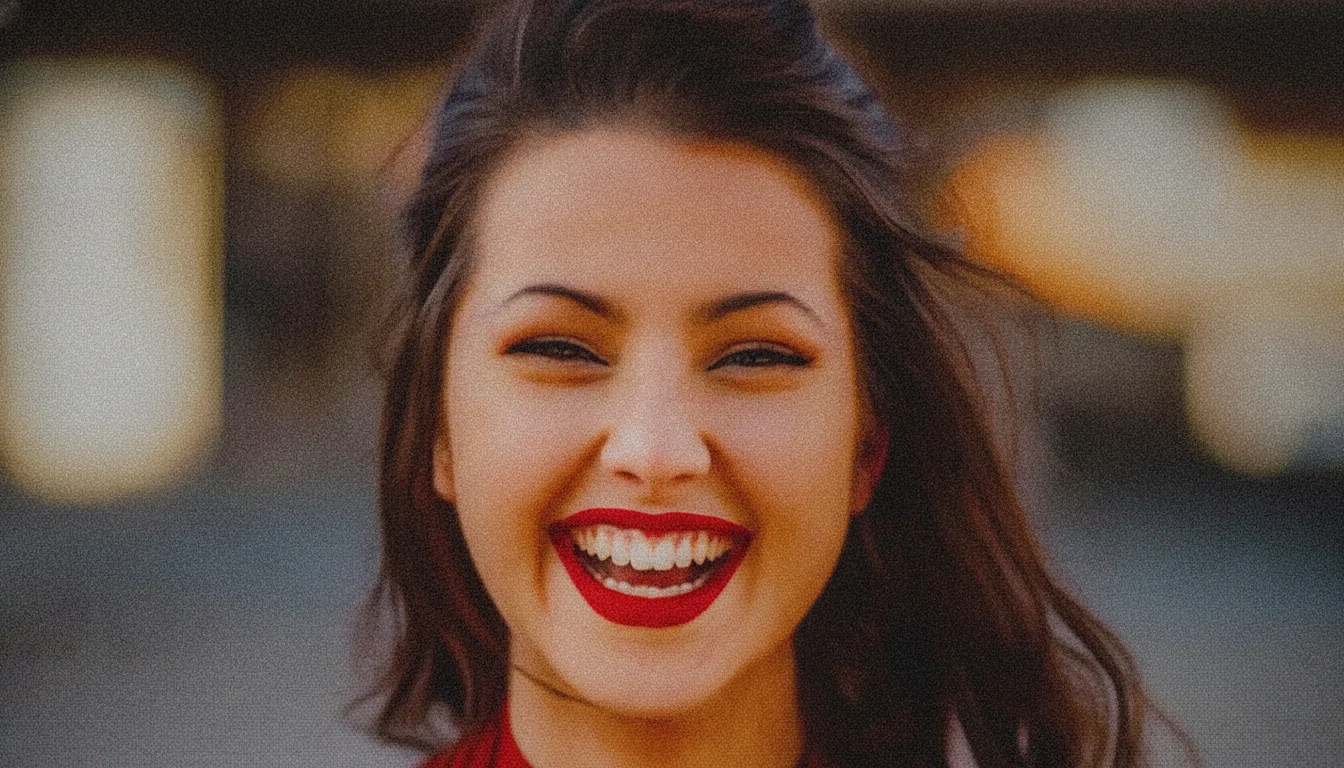
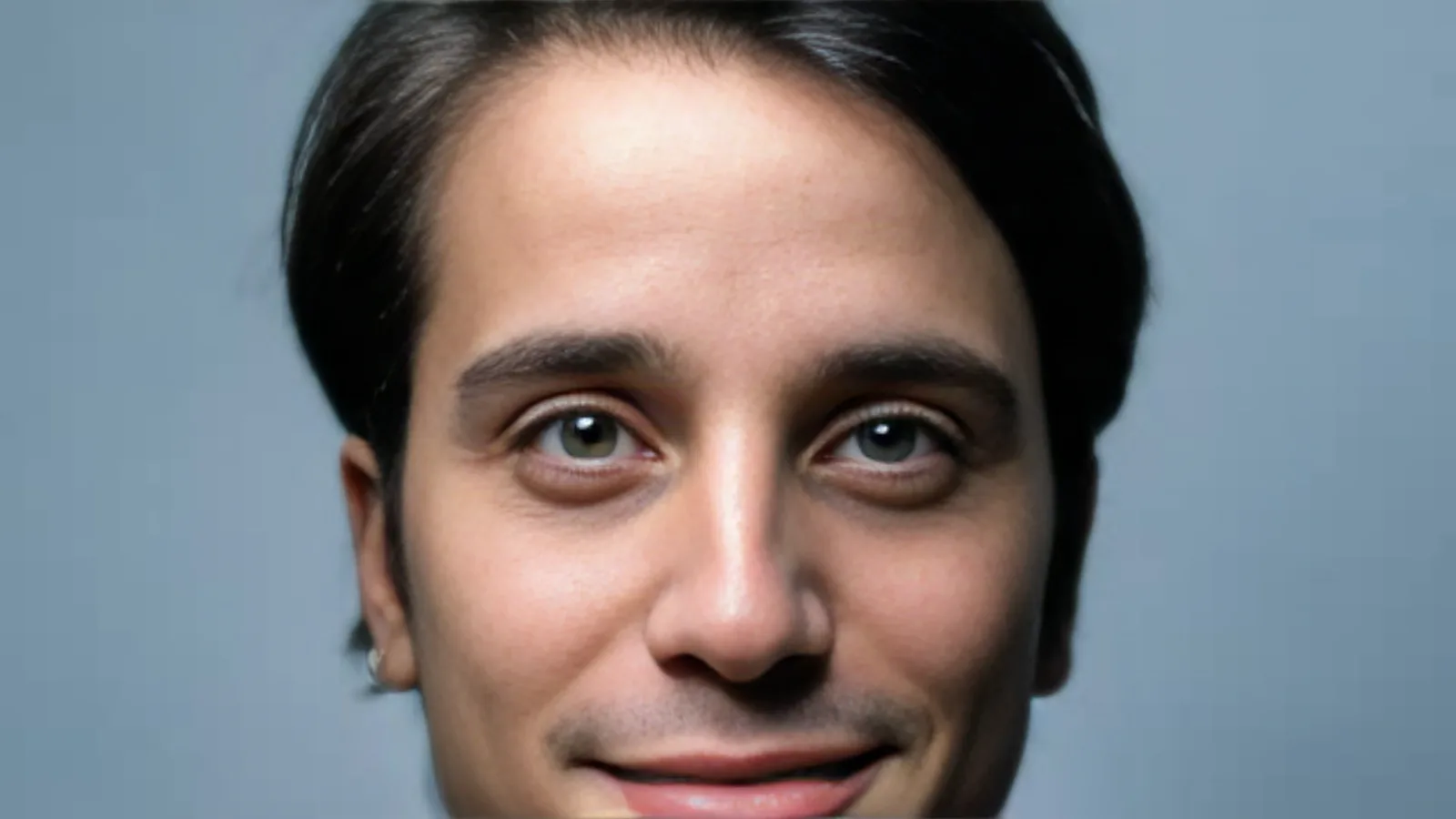
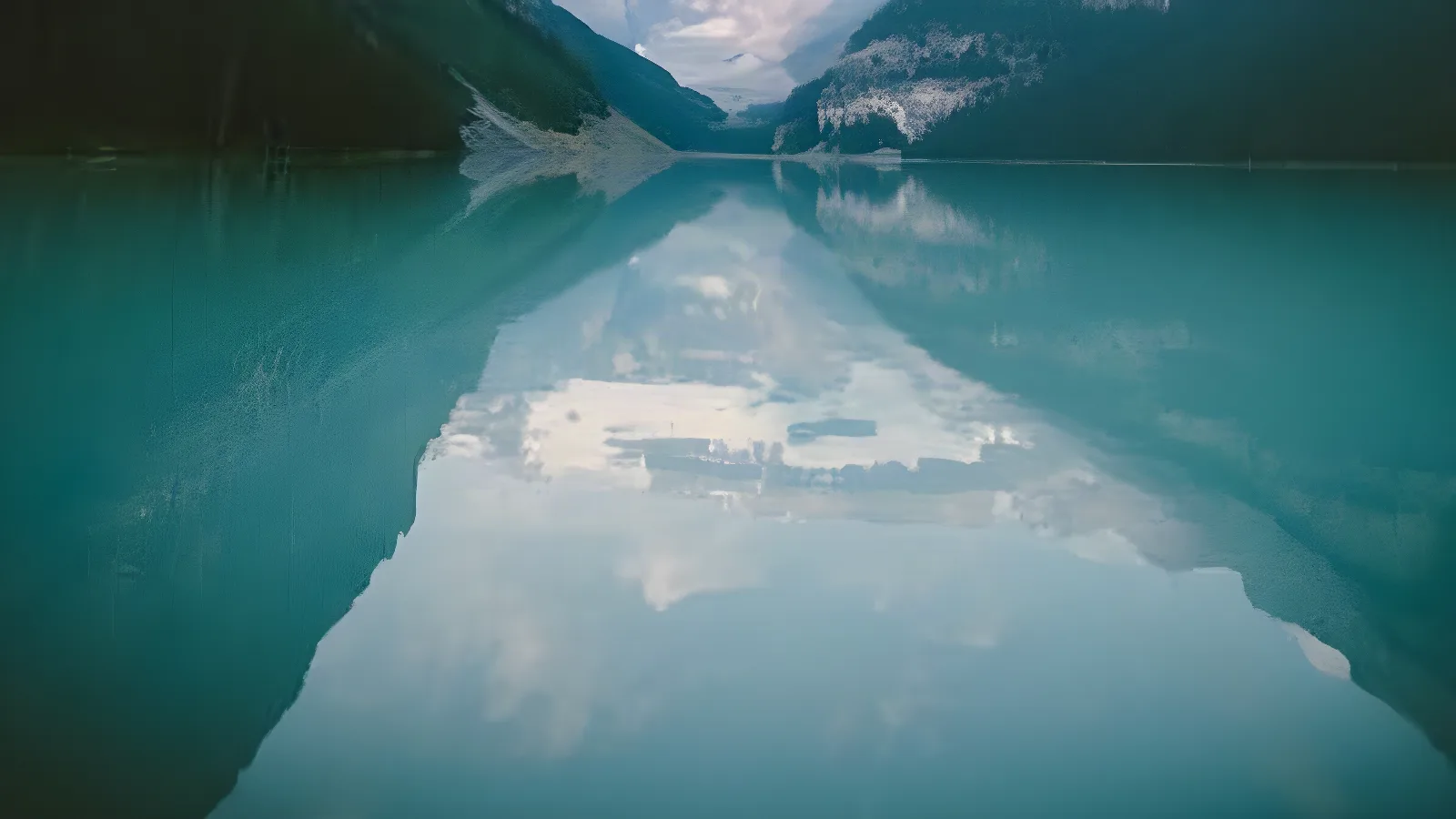
For pictures that are grainy, soft, blurry or too small. These tools keep what is in the photo and make it look better.
Remove
Which AI tools remove things from photos?
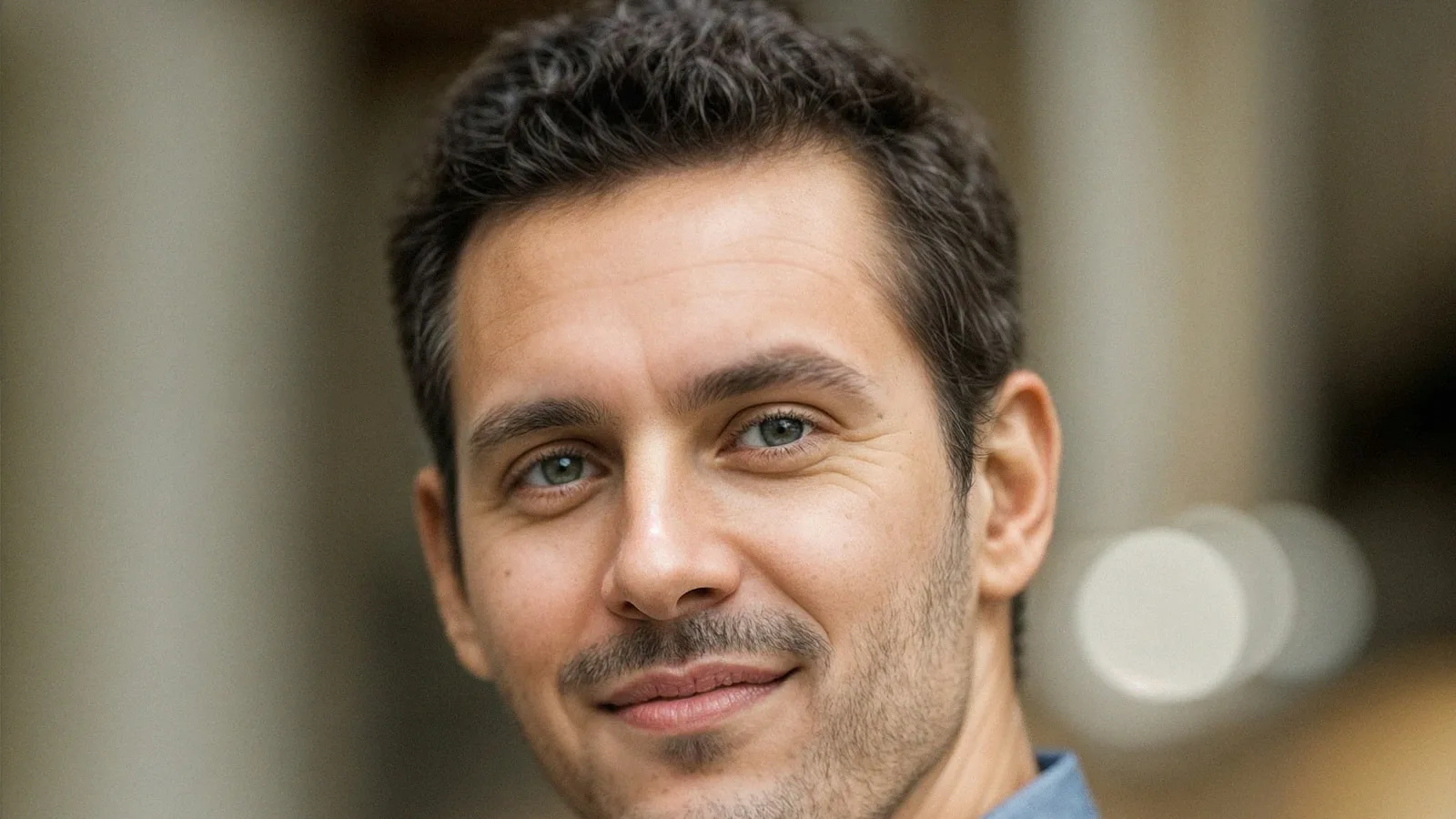
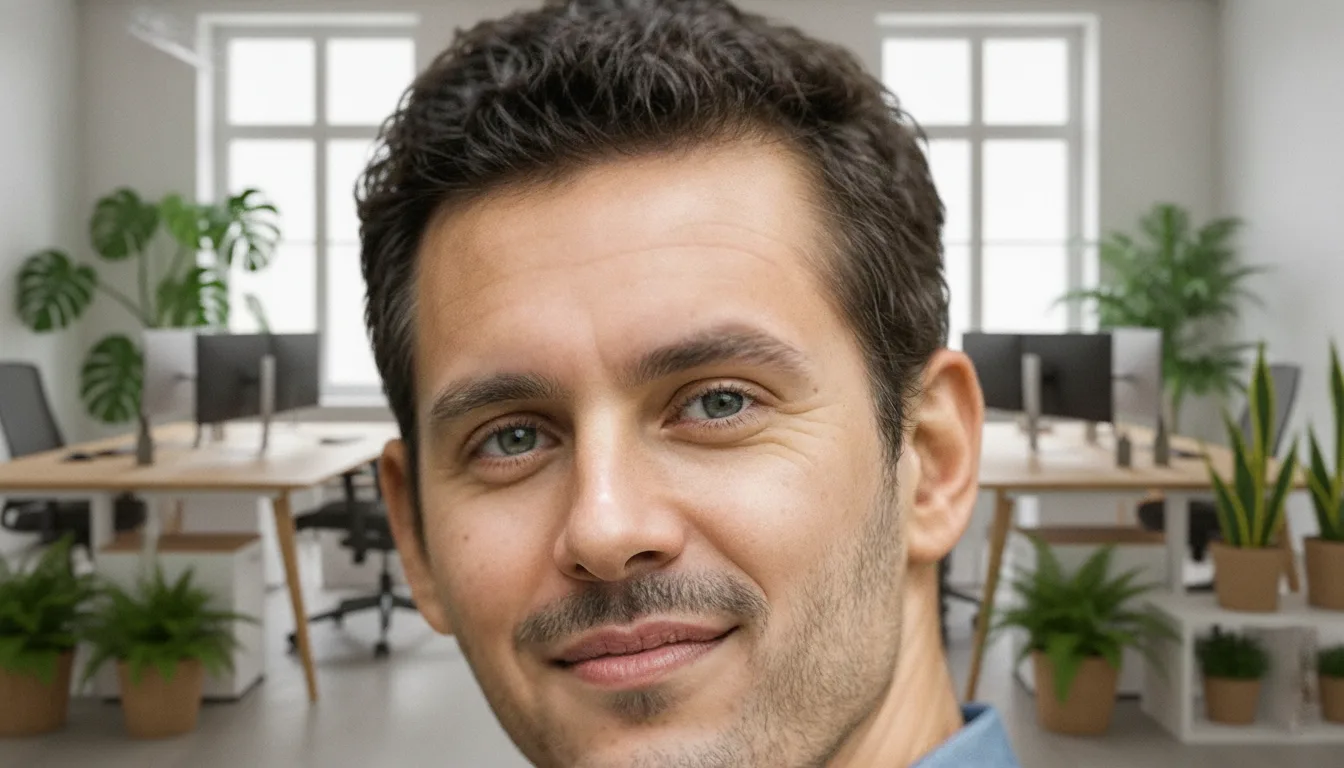
For taking something away: the background behind your subject, or a stamp, logo or caption on your own picture.
Edit
Which AI tools change what is in a photo?
For changing content rather than quality, from new words on a poster to anything you can describe in a sentence on the home editor.
Create
Which AI tools help you create new images?
For starting something new from a picture you already have, such as a prompt you can reuse in any image generator.
Frequently asked questions
Are these AI photo tools free?
You get one free guest edit across ImageMuse, not a separate trial for each tool. Image to Prompt has a separate allowance of up to 10 free uses a day. Trial access is subject to availability and abuse checks. After the trial, edits use credits, with the price shown before you run them. Downloads have no added watermark.
Which tool should I use for a blurry photo?
Use Unblur Image when the photo is smeared by movement or the focus missed, and the Photo Enhancer when it is grainy, compressed or slightly soft. If the picture is sharp but simply too small, the Image Upscaler is the right choice.
Can I use several tools on one photo?
Yes. Download the result from one tool and upload it to the next; for example, unblur a photo first, then upscale the sharp result. Fixing quality before enlarging gives the best outcome.
What if my edit is not covered by a tool?
Use the AI photo editor on the home page: upload the photo and describe the change in a sentence. It supports many edits beyond the dedicated tools, though results vary and the same content rules apply.
Last updated: